
Administrator onboarding
Start Flow Guard in 5 minutes
Start with a small scope and the defaults. The preview is read-only, so you can see exactly what Flow Guard would detect before monitoring begins.
A Jira administrator, 3–5 Jira Software projects, and the group that should run delivery reviews.
Setup and monitoring never edit a Jira issue. Assignment and comments require an explicit user action later.
1. Open Flow Guard setup
In Jira, go to Settings → Apps → Flow Guard setup. You can also select Open Flow Guard setup from the Action Queue.
| Section | Decide now |
|---|---|
| Scope | Projects to watch and the site time zone |
| Detection policy | Keep the defaults for the first preview |
| Business calendar | Leave off unless you need business-hour thresholds |
| Privacy and data | Export and deletion controls; no setup action required |
2. Choose a small scope
Select 3–5 projects with a handoff stage such as review, approval, or QA. Set the site time zone used for due dates, snooze return times, and the 09:00 digest window.
You do not need every project on day one. A smaller scope makes the first preview easier to judge.
3. Preview the defaults
| Signal | Default |
|---|---|
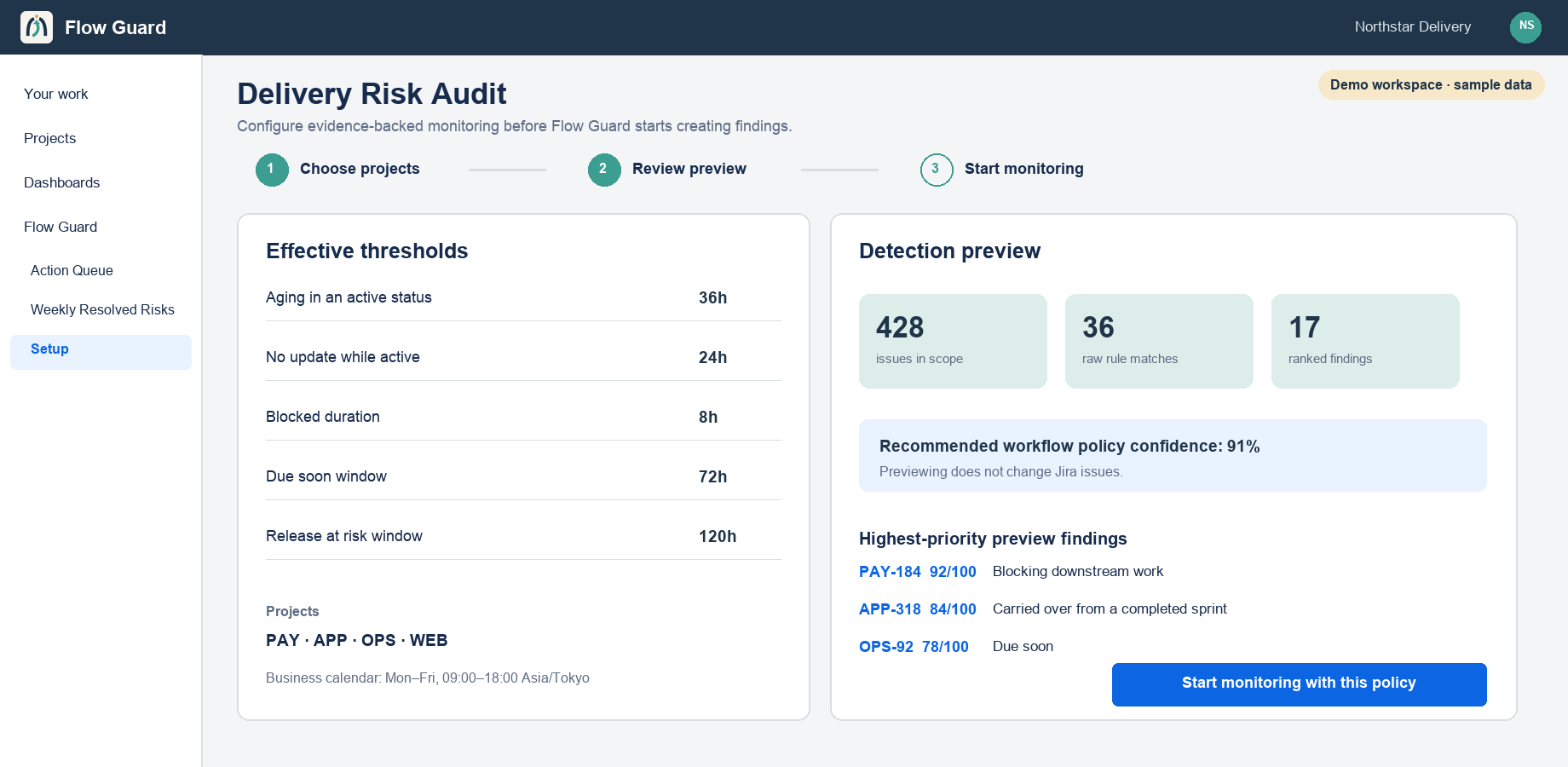
| Active-status aging | 72 hours |
| No update while active | 48 hours |
| Blocked duration | 24 hours |
| Due soon | 48 hours |
| Release at risk | 168 hours / 7 days |
Select Preview detection and effective policy. The preview changes nothing in Jira.
4. Check two answers
If a custom status is unrecognised, confirm whether it should be treated as active. The preview lists every mapping.
If the first results feel genuinely stuck, keep the defaults. If they describe normal work, use a scenario playbook after activation.
5. Activate monitoring
Tick the confirmation and select Start monitoring with this effective policy. Wait for Monitoring is active and a Last complete scan timestamp.
What runs when
| What runs | When | Can you set the time? |
|---|---|---|
| Complete scan | At activation, then once a day | No |
| Issue changes | The moment Jira sends the event | — (immediate) |
| Digest delivery | During the 09:00 hour, site time zone | No — each person chooses whether to receive one |
| Snooze release | 1, 3 or 7 days later, or 09:00 on a date you pick | You choose the date |
Atlassian schedules the complete scan. Nothing is lost by not choosing the hour: creating, updating or deleting an issue re-evaluates it there and then, so the queue is current without waiting for the next scan. The last finished scan is shown as Last complete scan. The 09:00 in the table above is digest delivery and snooze release.
Early findings may show Estimated or Install baseline. Jira does not always expose an exact transition time; the label shows the precision honestly and improves as Flow Guard observes changes.
6. Grant queue access
In Settings → System → Global permissions, grant View Flow Guard queue to the groups that run the review. This permission does not widen Jira access; each read and action still uses the viewer’s own issue permissions.
Ready checklist
- Monitoring is active.
- Last complete scan has a timestamp.
- Reviewers have View Flow Guard queue.
- The queue has no accidental filters.
- A reviewer can open a finding and explain its rank.